cTrader to MT5 Trade Copier:
Route and Position Checks
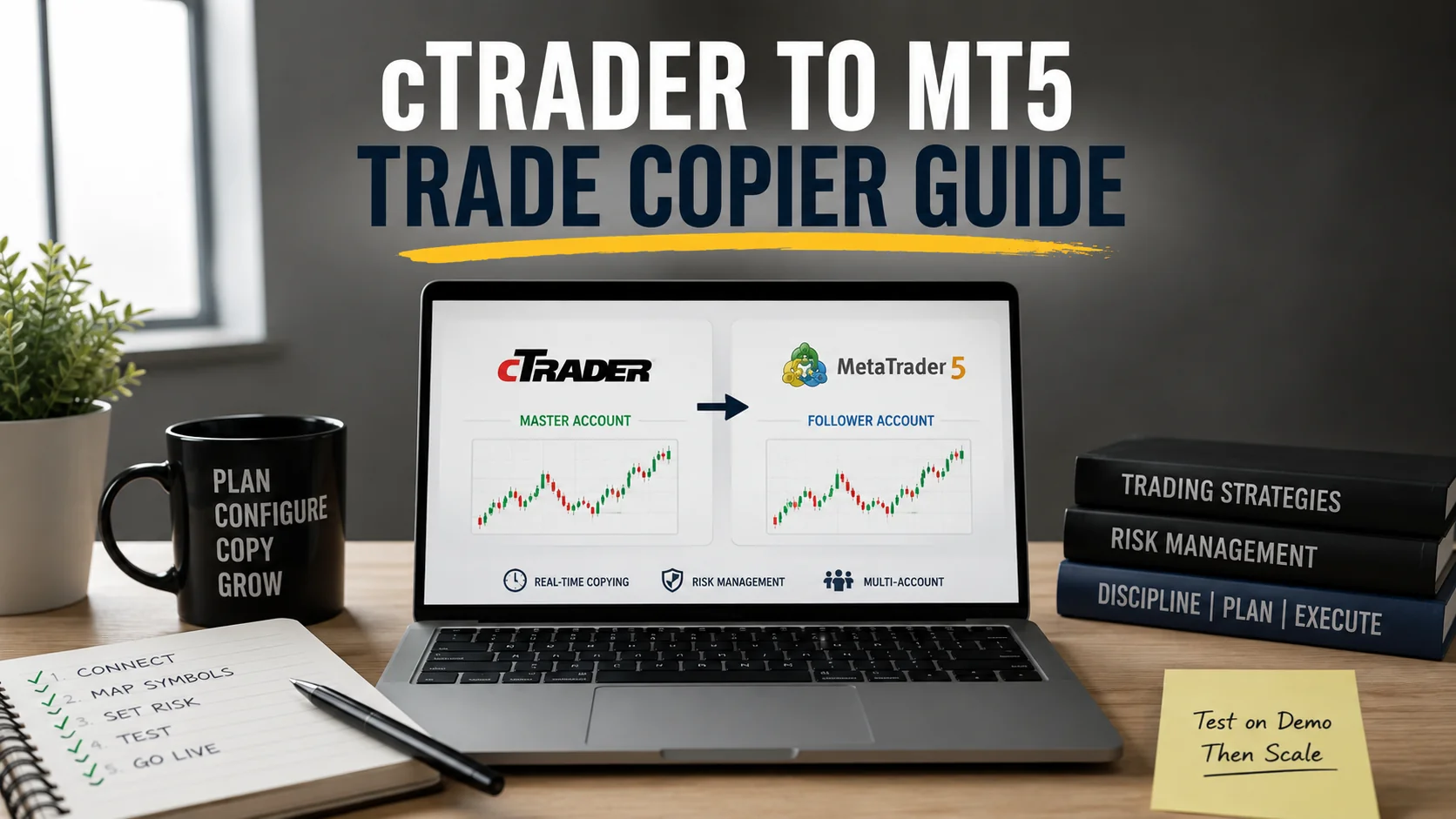
To copy from a cTrader source account to an MT5 follower, first confirm that your exact broker accounts and direction are supported. Then document the cTrader connection, match the destination instrument and sizing, and verify MT5 orders, deals and positions with a small controlled test. A shared currency-pair name or a successful connection does not prove that an order action or its resulting exposure will match.
This guide covers cTrader source → MT5 follower only. MT5 source → cTrader follower is the reverse route and needs its own support and test evidence. TradeCopier's current platform page shows cTrader and MT5 as self-service connection choices but does not certify copying in either direction for every broker, account mode, instrument or order type. Follow the current dashboard instructions or ask support to confirm this exact route for your accounts before enabling live copying.
Publisher disclosure: TradeCopier publishes this guide about its own product. Its public cross-platform page describes hosted routing, mapping and sizing across supported connections; current connection choices were rechecked September 24, 2026. The platform behavior below is drawn from the linked cTrader and MetaQuotes documentation checked on September 23, 2026. The examples and check rows are fictional planning aids; they report no live TradeCopier route test, fill result, latency or broker compatibility benchmark.
1. Record the actual cTrader and MT5 connections
Write down an alias for the cTrader source and MT5 follower, their broker and server, account type, live or demo environment, and the order actions to be copied. Record where each connector runs and what must remain online. TradeCopier hosts its routing layer; its cloud explanation says the browser may close, but broker/platform connections and any required connector must remain available. Do not infer that a required MT5 terminal component can be switched off merely because cTrader itself uses a cloud API.
cTrader's Open API authentication documentation describes an OAuth 2.0 authorization flow, account-specific permission and access tokens. Read-only account permission cannot perform trading operations. This explains one possible platform connection model; it is not an instruction to paste an API token, cTrader password or MT5 password into this worksheet. Use only the current TradeCopier dashboard connection flow for the selected route, verify its required permissions and ask how to revoke access. A broker or prop-account provider may also restrict copying independently of technical connectivity.
| Field | Record for this route | If missing |
|---|---|---|
| Direction and eligibility | cTrader source → MT5 follower; broker and server pair; approved connection method | The route remains unconfirmed. |
| Account access | Authorized cTrader account, required trading scope, MT5 trading permission and revocation method | An authenticated session may still lack permission to trade. |
| Runtime dependency | Hosted or local connector location, source/follower availability and interruption response | An offline component may prevent copying. |
| MT5 position mode | Netting or hedging, plus any account-specific order restrictions | Opposite trades and closes cannot be predicted safely. |
| Action policy | Market and pending orders, stop changes, partial/full closes and any unsupported action | A successful opening test cannot validate the entire trade lifecycle. |
2. Match instrument identity and quantity, not just the displayed symbol
A cTrader broker and an MT5 broker can display similar names for different contracts, while the same underlying may have different suffixes. Record the instrument description, base/quote or contract unit, trading hours, price units, minimum/maximum order volume and volume step on both accounts. TradeCopier's symbol-mapping overview asks users to review configured instrument matching and destination specifications; a mapping label does not prove economic equivalence of the instruments.
The cTrader Open API symbol model exposes broker-environment-specific symbol IDs and fields such as lotSize, minVolume, maxVolume and stepVolume. The MQL5 symbol reference exposes MT5 contract size and permitted volume minimum, maximum and step. Obtain the actual values from the two intended accounts. Check the calculated follower quantity against the destination's permitted increment before an instruction is submitted.
As an invented arithmetic example, suppose the cTrader source buys 0.20 lots of a hypothetical pair with 100,000 base units per lot, while the MT5 destination represents an economically equivalent contract with 10,000 base units per lot. The source has 20,000 base units; matching that nominal amount would require 2.00 destination lots if the route and volume grid permit it. Sending 0.20 unchanged would represent only 2,000 base units in this example. Equal nominal units still do not prove equal cash risk, margin, fill price or financing. The figures are not a TradeCopier sizing algorithm or a live contract specification.
3. Write down the intended MT5 position before the source event
MetaQuotes' MT5 trading principles distinguish orders, executed deals and resulting positions. In MT5 netting mode there is one common position per symbol; an opposite deal may reduce, close or reverse it. In hedging mode, separate same-symbol positions, including opposing ones, can coexist. The broker selects the account mode. A cTrader source position ID is not automatically the MT5 destination position ID.
Before testing, record whether the source's second same-symbol entry should create a separate MT5 position, change a net position or be excluded by the route. Specify how an MT5 stop modification or partial close will identify the intended destination state. A small first entry is insufficient evidence: a second entry, protection change and close can reveal different behavior. An unsupported action should remain explicitly unsupported rather than being described as synchronized.
| Source action to propose | Expected destination state to specify before testing | Record after the action |
|---|---|---|
| Open a small position from flat | Target MT5 symbol, permitted quantity and direction | Source event, route decision, MT5 request, order, all deals and resulting position |
| Open another trade on the same symbol | Netting or hedging result under the follower's actual account mode | Both source references and MT5 before/after position snapshots |
| Change source stop loss or take profit | Which destination position or net exposure should change, if supported | Before/after levels, rejected/accepted status and final protection value |
| Partially close the source position | Target remaining destination quantity and source-to-position association, if supported | Requested reduction, filled reduction and actual remaining exposure |
| Place then cancel a pending order | Whether the route copies pending instructions, their fills, cancellation or none | Working-order state, any partial fills and cancellation result |
| Interrupt a required connection | Documented behavior for source events during the interruption | Connection log, unresolved events and reconciled MT5 positions after recovery |
4. Diagnose the stage that failed instead of assuming a silent symbol error
A missing MT5 position can result from route eligibility, authorization, source detection, instrument mapping, volume rules, an MT5 request rejection, a pending order that has not filled or an interruption. No published evidence establishes that symbol mismatch is the most common cause for this product or that such a failure is always silent. TradeCopier's public activity-log page describes copied, skipped and error events. Check the actual account record and supported log fields before assigning a cause.
cTrader's Open API messages document both error responses and execution events that distinguish acceptance, fill and rejection. Their new-order message marks an order label optional; cTrader does not universally require a special copier label for transparency. A label, if present, can help identify an order, but it cannot by itself prove the MT5 follower filled. MetaQuotes' OrderSend reference likewise warns that successful request submission is not proof of execution. Inspect linked destination deals and the resulting position.
Record each route-check row as not run, pass, fail, unsupported or unresolved. Do not turn an absent log into a zero error count or a passed test. After a timeout, reconcile the MT5 order, deals and positions before repeating a source action: a blind retry can add exposure. If broker specifications, account mode, connector location or mapping rules change, repeat the relevant checks.
Use this guide for the cTrader-to-MT5 direction
This page owns the cTrader-source → MT5-follower route decision and verification record. For a general record of connector availability across several platforms, use the cloud connection checklist. A different source-to-destination direction needs a separate route check; do not reuse this result as proof of MT5-to-cTrader support.
Start with the current connection choices, verify the exact account combination and supported actions in the dashboard or with support, then test small quantities where permitted. Copying instructions can reduce repeated manual entry, but it cannot ensure identical fills or a profitable strategy.
Quick answers
Frequently Asked Questions
Find answers to the most common questions about this topic.
Does TradeCopier support every cTrader-to-MT5 account combination?
No universal compatibility is documented. cTrader and MT5 appeared as separate choices in the inspected self-service app; that does not prove their pairing or every broker, account mode, instrument and action. Confirm the exact direction and supported actions in the current dashboard or with support.
How should I connect a cTrader source account?
Follow the current TradeCopier dashboard instructions for the supported route and required account permission. cTrader Open API uses account authorization and access tokens as a platform model, but this guide does not prescribe an unverified TradeCopier token or password workflow. Keep credentials out of test records.
Is a different symbol suffix always the reason an MT5 copy is missing?
No. Symbol mapping is one possible failure stage, alongside permission, route eligibility, volume rules, rejection, an unfilled order and connection loss. Examine the available copier logs and MT5 order, deal and position records before assigning a cause.
Do cTrader API orders require a copier label?
The cTrader Open API new-order message lists label as optional. A label may help identify an order if one is supplied, but a label alone does not establish that a destination trade executed.
Why does the MT5 account mode matter?
A netting MT5 account maintains one position per symbol, while a hedging account can hold separate same-symbol positions. Opposite entries, partial closes and protection changes can therefore need different destination associations. Verify the resulting state rather than assuming the source position structure is identical.
Does a successful cTrader-to-MT5 test prove MT5-to-cTrader works?
No. Reverse-direction support, connection requirements, instruments and order actions are separate questions. Confirm and test that route independently.